Discover how easy it is to book your 1-on-1 tutoring lesson at HSKCourse. No deadlines. No pressure. Book an appointment that fits your schedule in minutes.
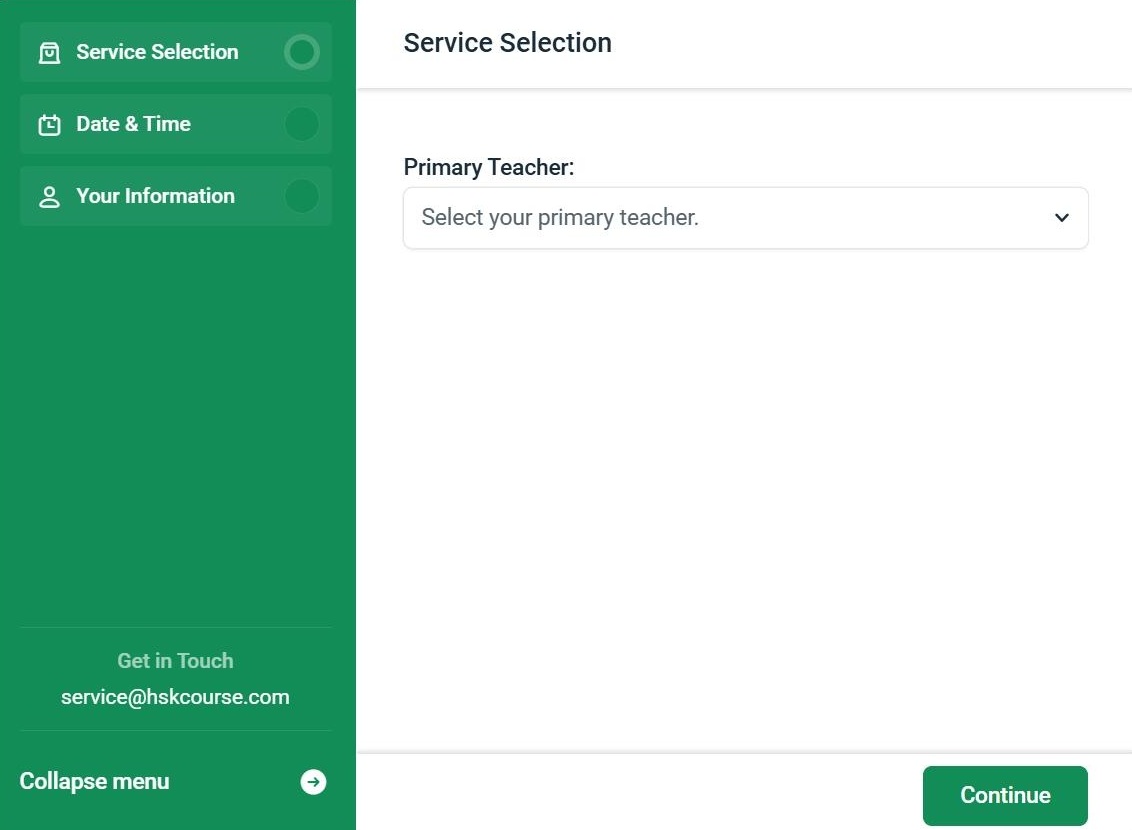
1. Choose Your Primary Teacher
Pick your primary teacher for your regular lessons. Your teacher will get to know your progress, strengths, and areas for improvement, and can tailor each lesson to your needs.
2. Choose Your Lesson Date & Time
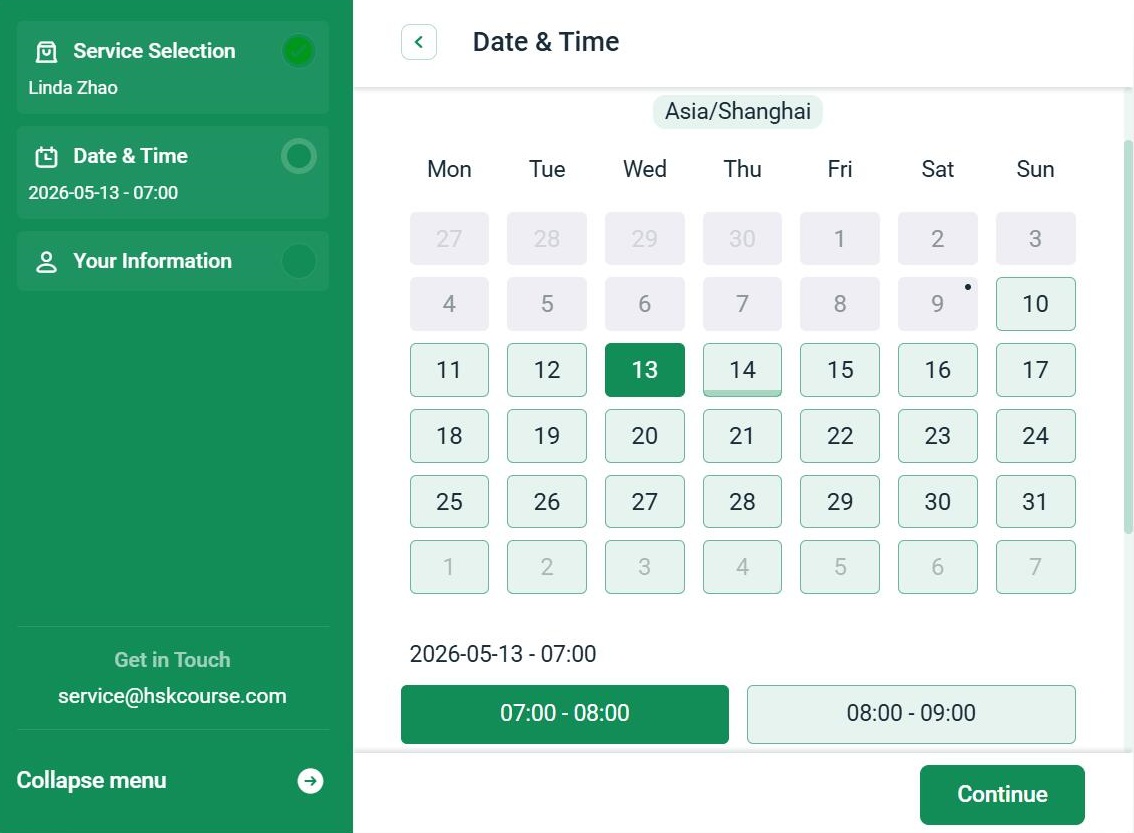
The calendar shows the teacher’s available time slots. Simply select the one that best fits your schedule.
3. Recurring Booking
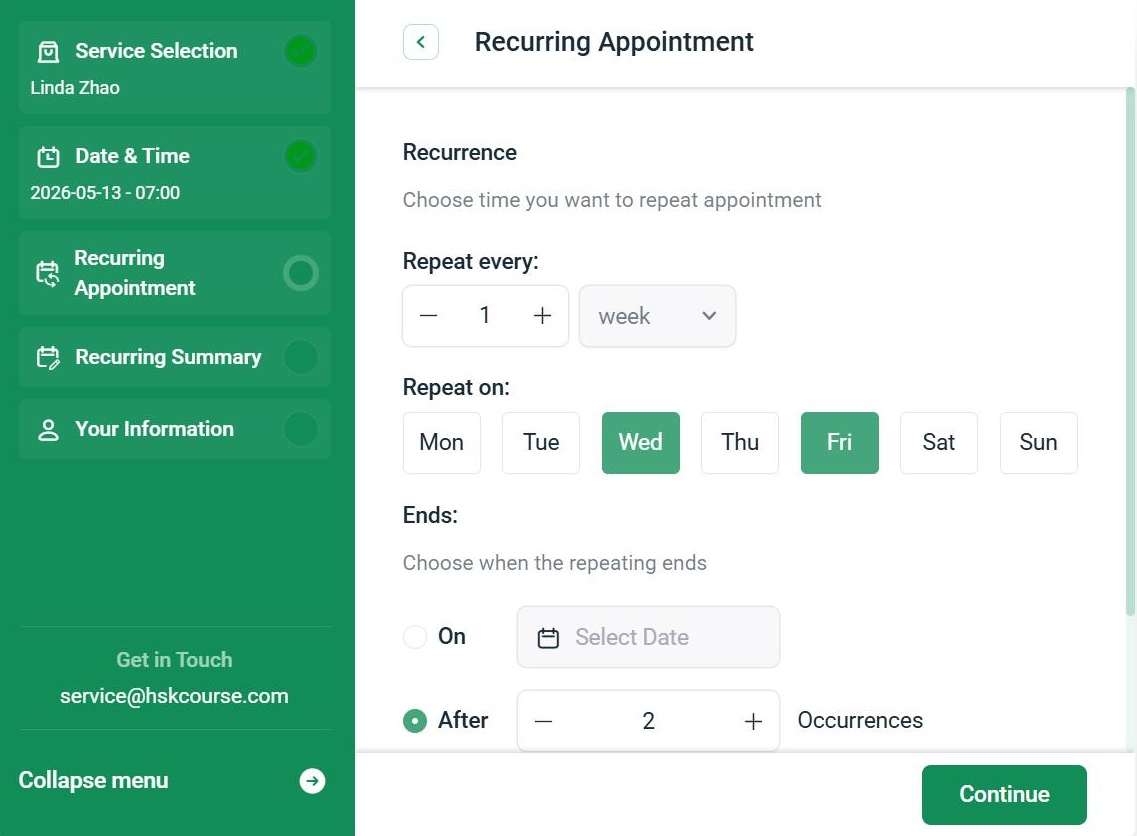
Once you pick a date and time, a Repeat Appointment option appears. Select No to book a single one‑time appointment. Select Yes to set up recurring lessons.
Book a weekly repeating sequence in one go. You can:
Unavailable dates? If any lesson in the series can’t be scheduled (due to conflicts or full slots), you can cancel or reschedule those individual appointments from the calendar window.
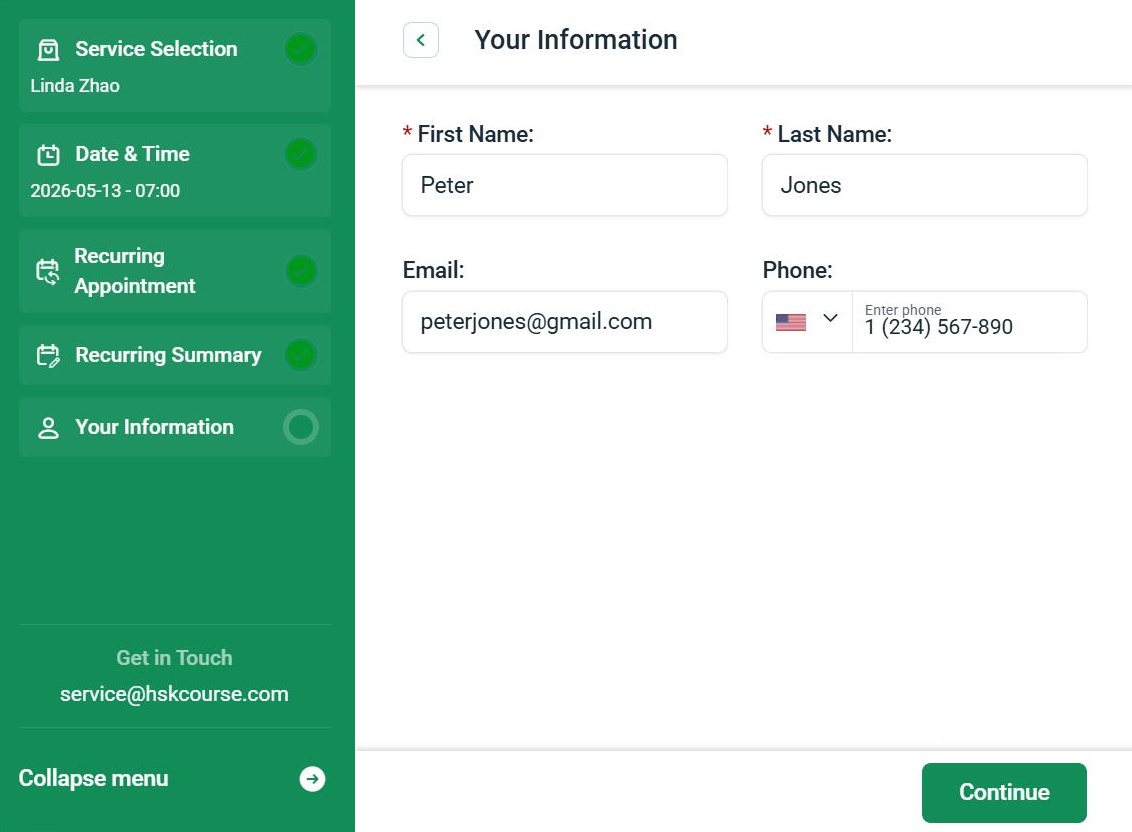
4. Enter Your Information
The information step asks for your:
5. Confirm & Add to Calendar
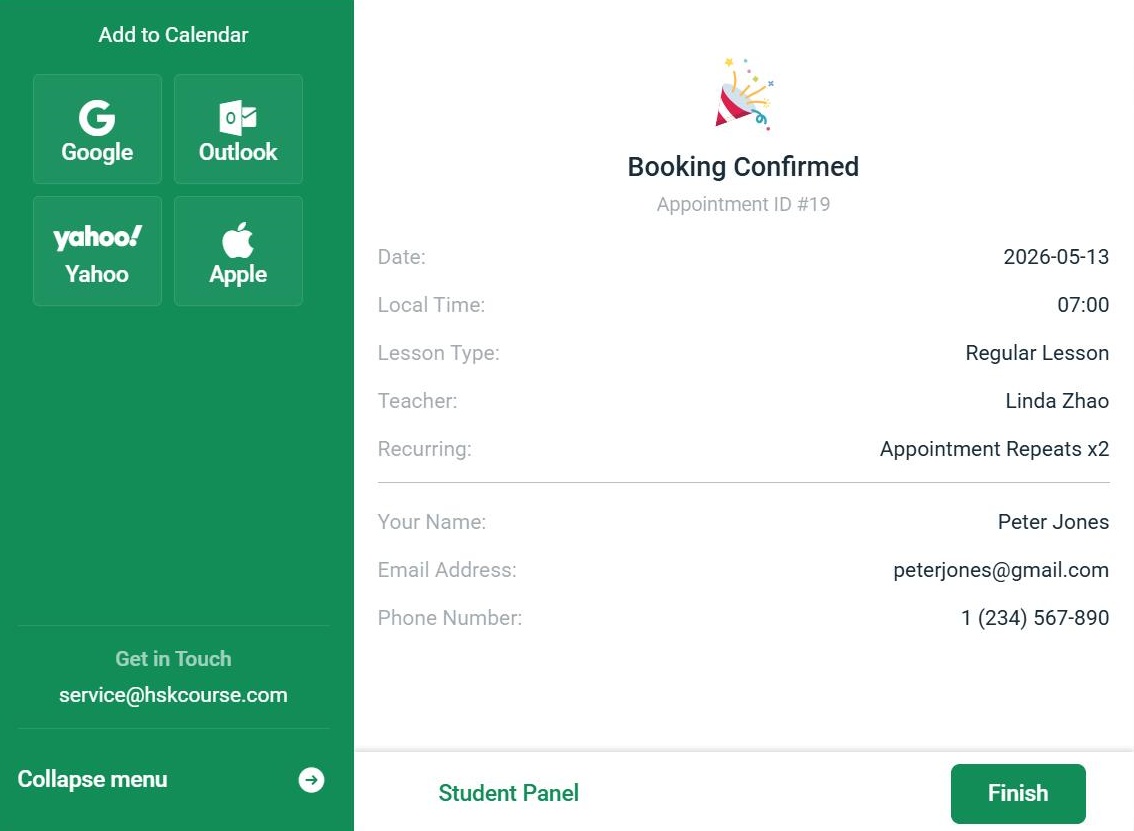
After completing your booking, you’ll see a confirmation screen with appointment details. Use the Add to Calendar button to save the lesson to Google, Outlook, Yahoo, or Apple Calendar.
Once your booking is successful, you’ll receive a confirmation email. You’ll also get a reminder before each class — so you never miss a lesson.
What happens after the booking is done?
Click the Student Panel button on the confirmation page. You’ll be directed to set up your password. Once your password is created, you can log in to your Student Panel, where you can manage your appointments.
6. Cancel & Reschedule
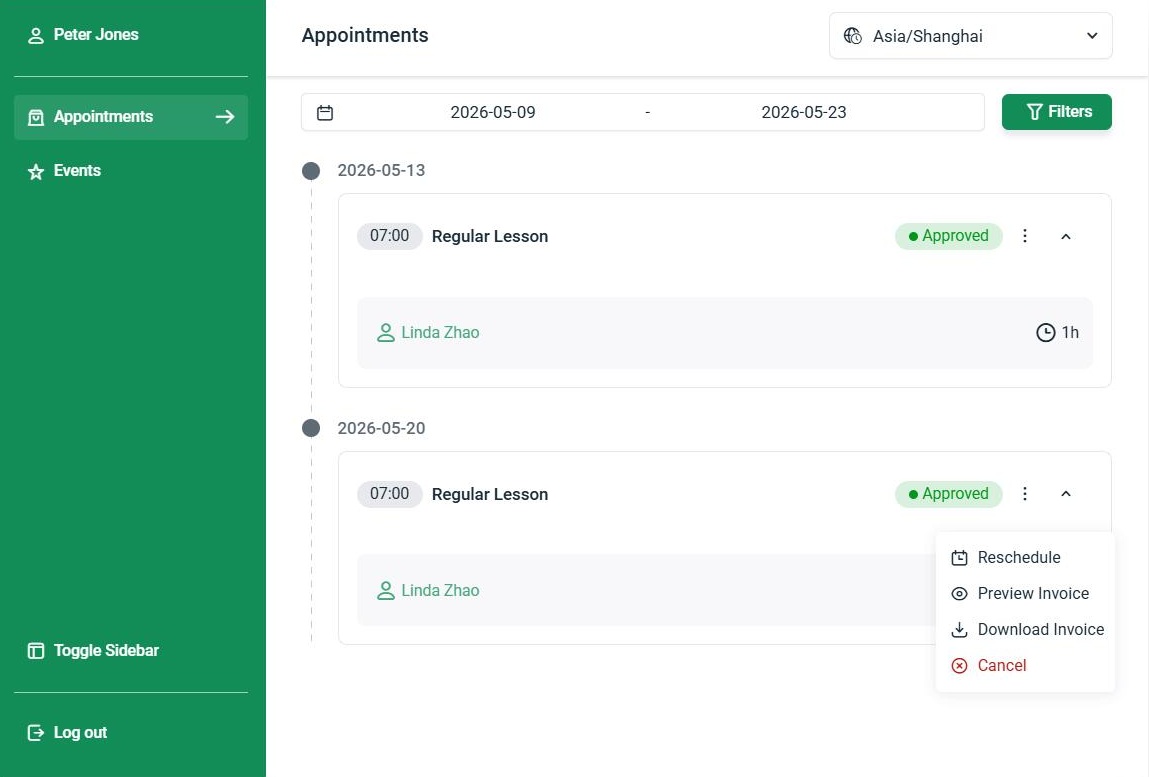
When you log into your Student Panel, you can immediately see your upcoming and past appointments.
To manage an appointment, go to the Appointments tab and click the ⋮ menu on any booking. This will show available options, including Cancel and Reschedule.
Note: Changes must be made at least ONE hour before the scheduled start time.